
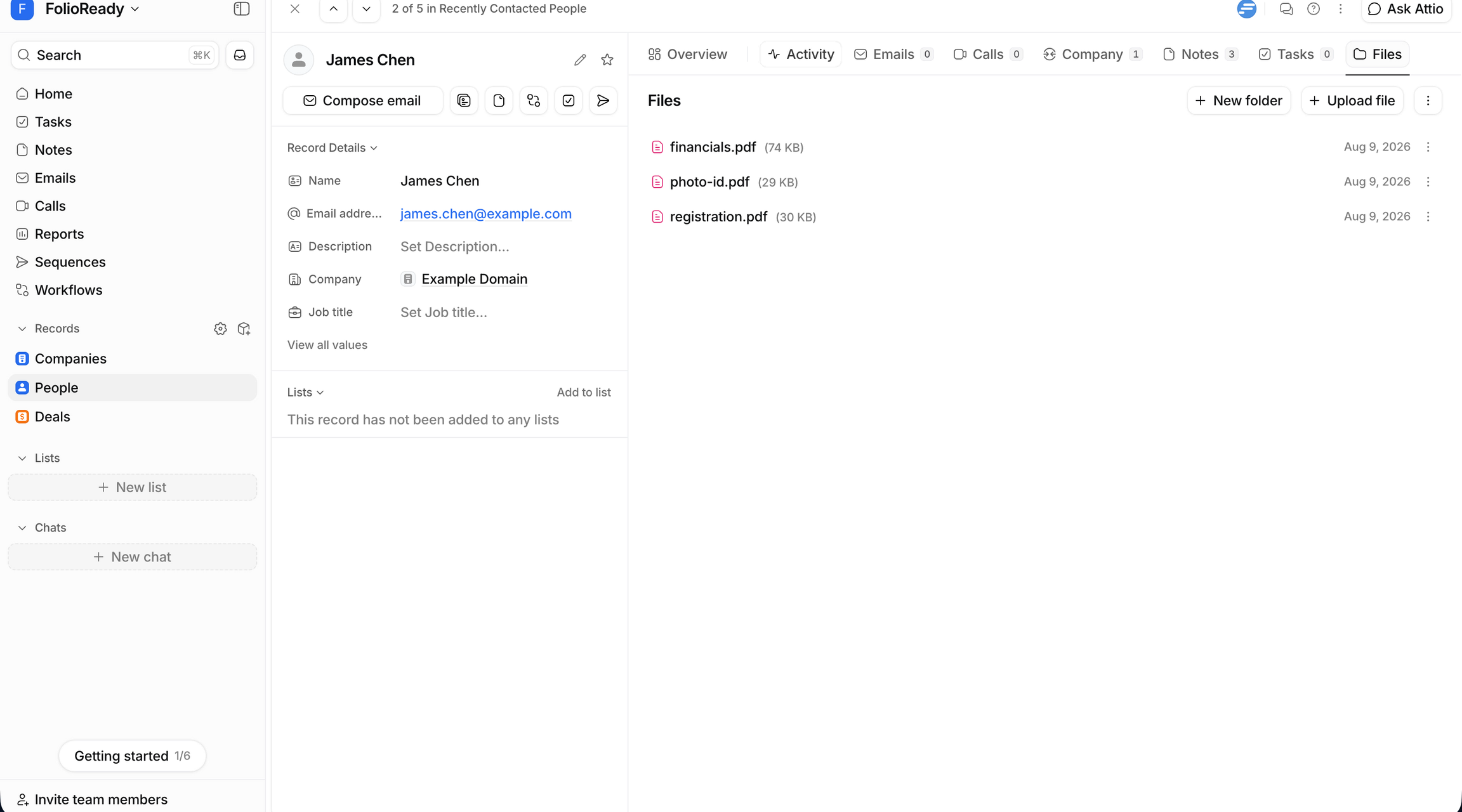
A very large file (over 50 MB) stays in FolioReady rather than mirroring — Attio caps uploads there. And a client's files only mirror once their FolioReady client is linked to an Attio Person; the panel links them in one click. If a template files against a Deal instead, the files land on the Deal record once you've picked which one.
Connecting...
Let Completed Folios File Themselves in Attio
A folio comes back full of documents — the ID, the signed letter, the statements — and now you're a courier. Download each file out of FolioReady, open the client's record in your CRM, upload them again, one by one. Every completed folio, by hand, just to get the documents where your team actually looks for them. With Attio connected, one setting ends that.
Flip One Setting
The Next Folio Files Itself
- Your client
A client finishes their folio and submits — the same portal flow as always, nothing new on their side.
- FolioReady
The moment the folio completes, FolioReady attaches every file to the record that folio belongs to — straight into the linked Attio Person's Files panel. No download, no re-upload, no courier run.
- The result
The documents are on the record in Attio, filed and findable by whoever opens it — and you never touched a file.
A Couple of Things to Know
The fine print
The Whole Series, Working Together
Connect Attio, work from the panel, and let files file themselves — the three pieces turn Attio and FolioReady into one workflow. If you haven't set the first two up yet, start with connecting Attio.
Send files straight to Attio
Turn on Attio storage and completed folios file themselves. See how in the Attio guide.