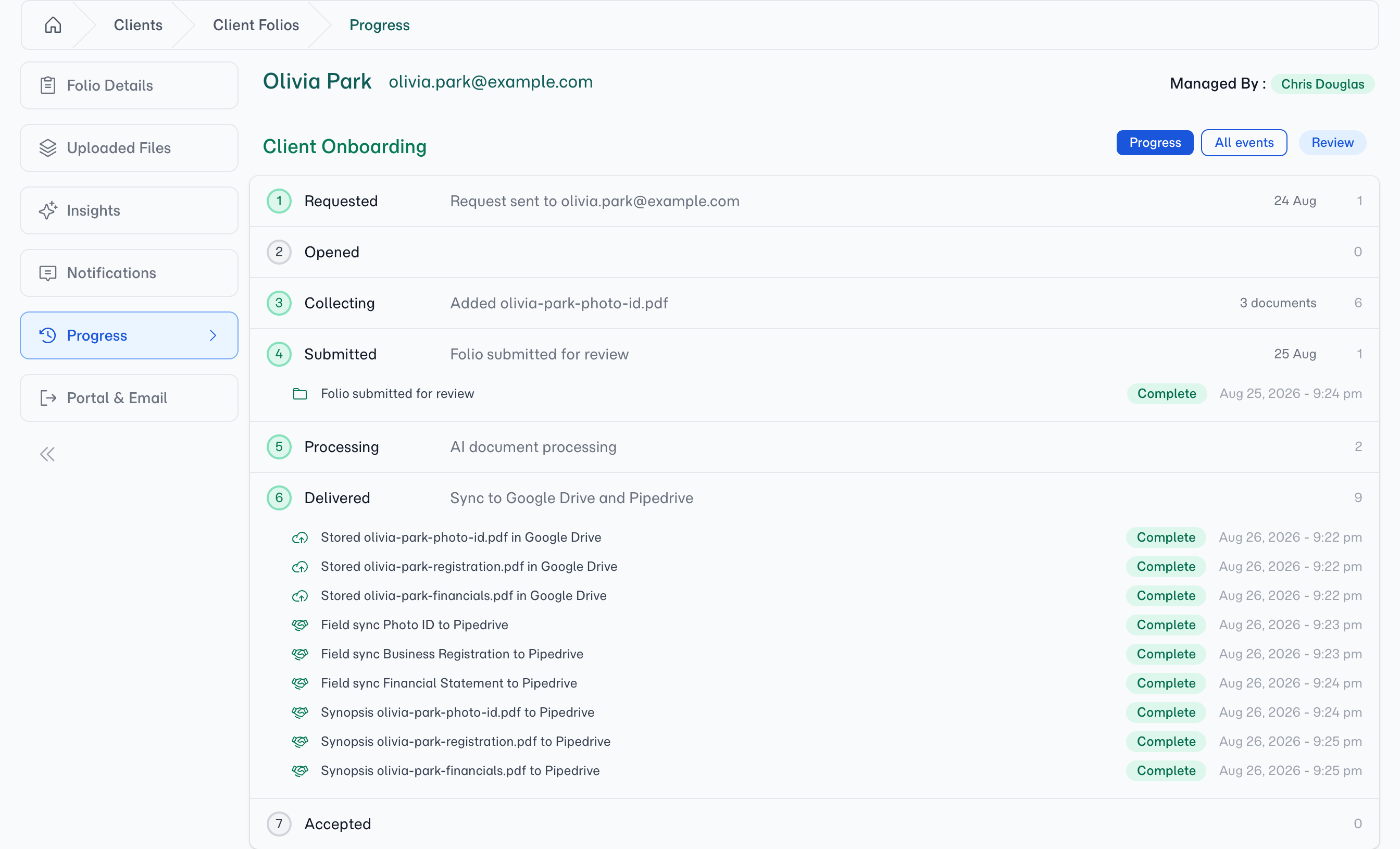
If an event doesn't belong to any stage, it appears in an extra Other activity stage at the bottom rather than being hidden. That stage only shows up when there's something in it.
Connecting...
Every Folio, as a Process You Can Read
A folio isn't a list of things that happened — it's a request that travels. You send it, the client opens it, documents arrive, the client submits, the AI reads what came in, everything lands in your CRM and storage, and you accept it. When a client asks "where are we up to?", that's the answer they want. Not eighteen rows sorted newest-first.
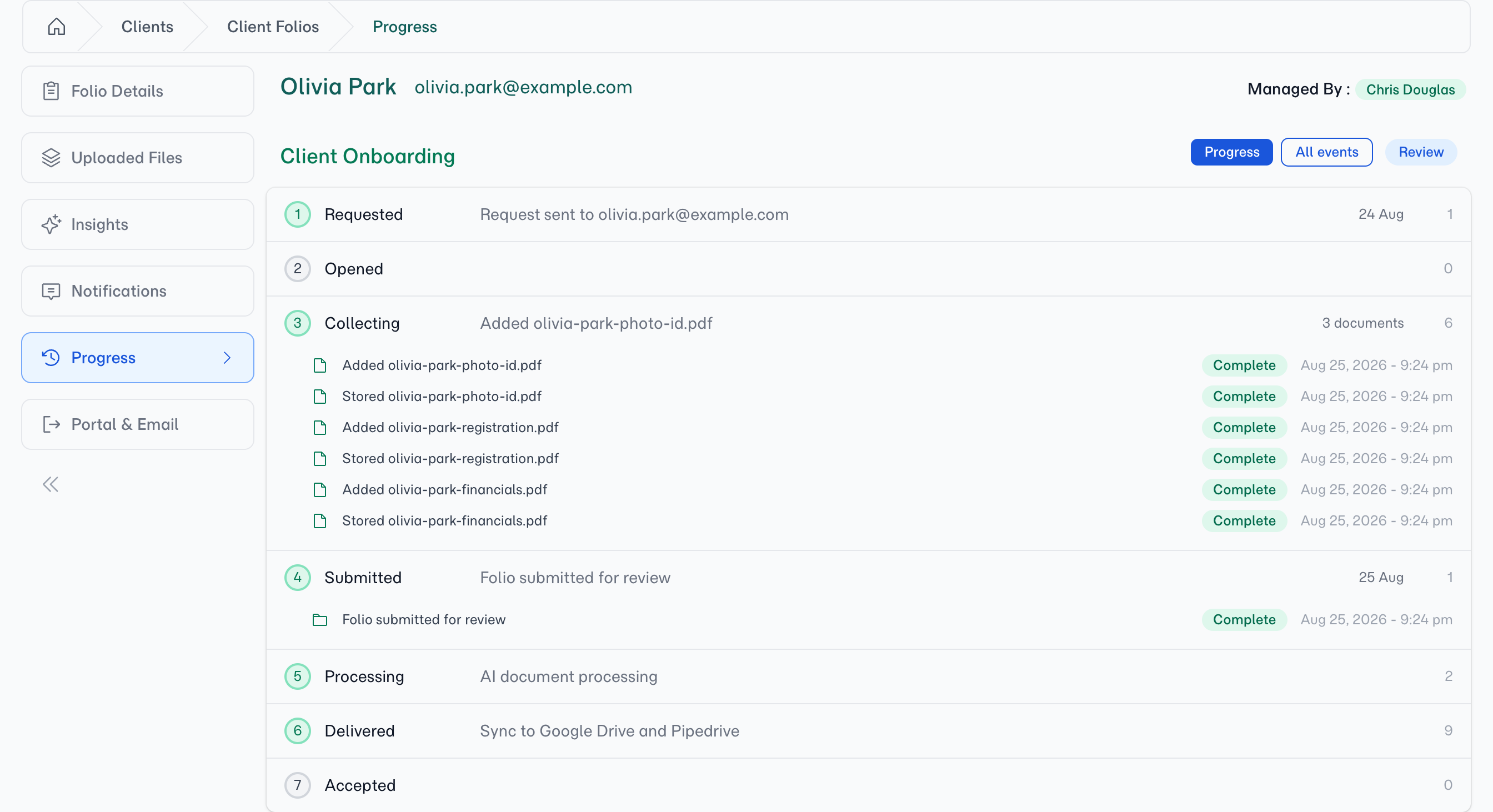
The Progress tab shows exactly that. Each folio's events are grouped into the stages of its submission, on a rail you read top to bottom, so the state of the request is legible in a glance rather than reconstructed from a table.
Why use it
The answer to "where are we up to?"
The rail reads in the order the work happens, so you don't have to date-sort in your head. A stage that's finished is ticked, the one in flight is marked as running, and the ones still ahead are dimmed. You can see whether you're waiting on the client or the client is waiting on you without opening anything.
Problems come to you
Anything that failed is pulled to the top of its stage, and the stage holding it opens by itself. A CRM write that didn't land is no longer one grey row among thirty — it's the first thing on the page, carrying a red badge and a red icon.
Every event answers for itself
One row per event, each with its own status. Rows used to fold together when several of the same kind arrived at once, which read tidily until the members disagreed — a group holding one failure and three successes had no honest state to show, and the line it printed named none of them. Now a row carries a badge for what happened to it, and says what it acted on: which section a field sync moved, which document a synopsis describes.
The stages
Every folio event is placed into one of seven stages. The rail shows a stage whether or not anything has happened in it yet — an empty stage is part of the answer.
Delivered is the one exception. If you have no CRM connected, an empty Delivered stage is left off the rail rather than sitting there as a step that can never complete. It still appears the moment it has something to report — a file saved to your connected storage will do it — and it is always there once a CRM is connected.
- Requested — the request went out to your client
- Opened — the client opened the folio for the first time, and verified their email if the folio asks them to
- Collecting — documents arriving and being removed, reminders going out, and the client resubmitting after you've asked for changes
- Submitted — the client submitted the folio for your review
- Processing — the AI reading the documents, extracting field values, writing synopses, and any AI Insights applied to the folio
- Delivered — everything written outward: files saved to your connected storage, fields and notes pushed to your CRM
- Accepted — you accepted the folio and closed it out
The last stage renames itself to match how the folio actually ended — Expired if it passed its deadline, Closed if you closed it — so the rail never claims an outcome the folio didn't reach.
💡
Nothing gets dropped
What each stage tells you
Under every stage label is a second line naming what that stage actually produced, so you can read the folio without expanding anything:
- Collecting counts the documents — "3 documents"
- Processing counts the fields the AI filled — "7 fields"
- Delivered names where the folio is being sent — "Sync to Pipedrive" — and stays quiet when everything landed, speaking up only for "1 failed" or "3 in progress"
Open a stage and you get its events in order, one row each. Every row carries a status badge — Complete, Pending, Sending, Retry, Failed — and an icon whose shape says what kind of event it was and whose colour repeats the status, so a failed row is red from its left edge.
Failures sort to the top of their stage, whatever else is going on around them.
The full table is still there
Progress is a reading view, not a replacement for the record. An All events toggle at the top of the tab swaps the rail for the familiar table — every event, with search, sorting, filtering and paging intact. Switch back with Progress.
The view you're on and the stages you've opened are transient: they're how you're reading the folio right now, not settings to manage. Reload the page and you're back to the default — current stage open, problems surfaced.
The Progress view also updates live. Events that land while you're looking at the folio appear without a refresh, so a folio you leave open during an AI run fills in as the work completes.
Where else events show up
Folio events are readable at three levels, each answering a different question:
- This folio's Progress tab — where is this request up to? Stages, in order, for one folio.
- A client's Event Timeline — what's been happening with this client? Every event across all of that client's folios, in one searchable feed.
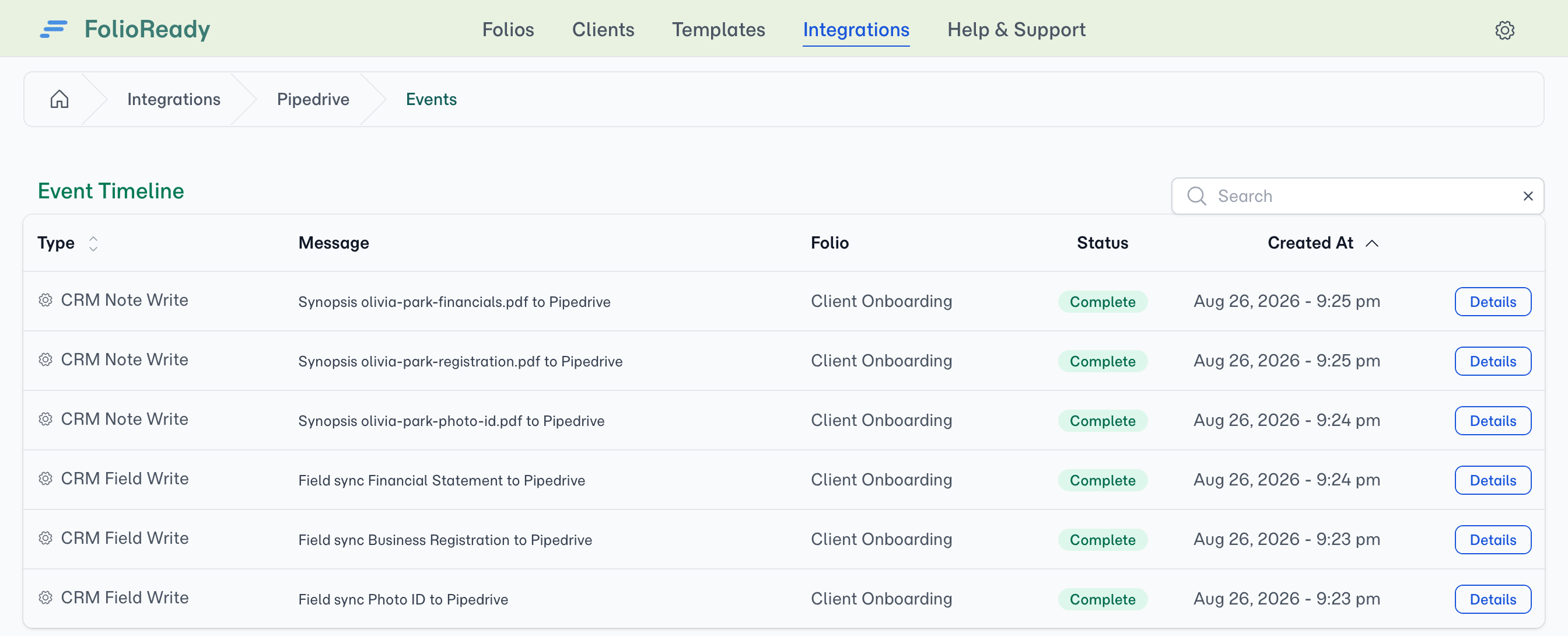
- An integration's Event Timeline — is this connection doing its job? Open any connected app from your Integrations page and select its Event Timeline to see every event that app has produced, across every client and folio, with the same search you get elsewhere.
The integration-level view is the one to reach for when you're checking a connection rather than a client — confirming a CRM has been receiving writes, or finding the point where a storage provider stopped saving.
Tips
- Read the rail before you read the rows. If the shape is right — Collecting complete, Delivered ticked — you don't need to open anything.
- An open stage is a hint. The Progress view opens the stage that needs you: the current one, or any stage holding a failure. If nothing is open, nothing needs you.
- Use All events when you're searching, Progress when you're orienting. Looking for a specific filename or timestamp is a table job; understanding a folio is not.
- Check the integration timeline before you reconnect anything. If a connected app has stopped working, its own Event Timeline will show you where the events stopped, which is usually faster than reconnecting and hoping.
Related
- Client Event Timeline — The same events one level up, combined across all of a client's folios
- AI Automation — The extraction work that fills the Processing stage
- File Storage Integrations — Storage saves, recorded in the Delivered stage
- Folio Insights — Insight proposals you accept, recorded as Processing events